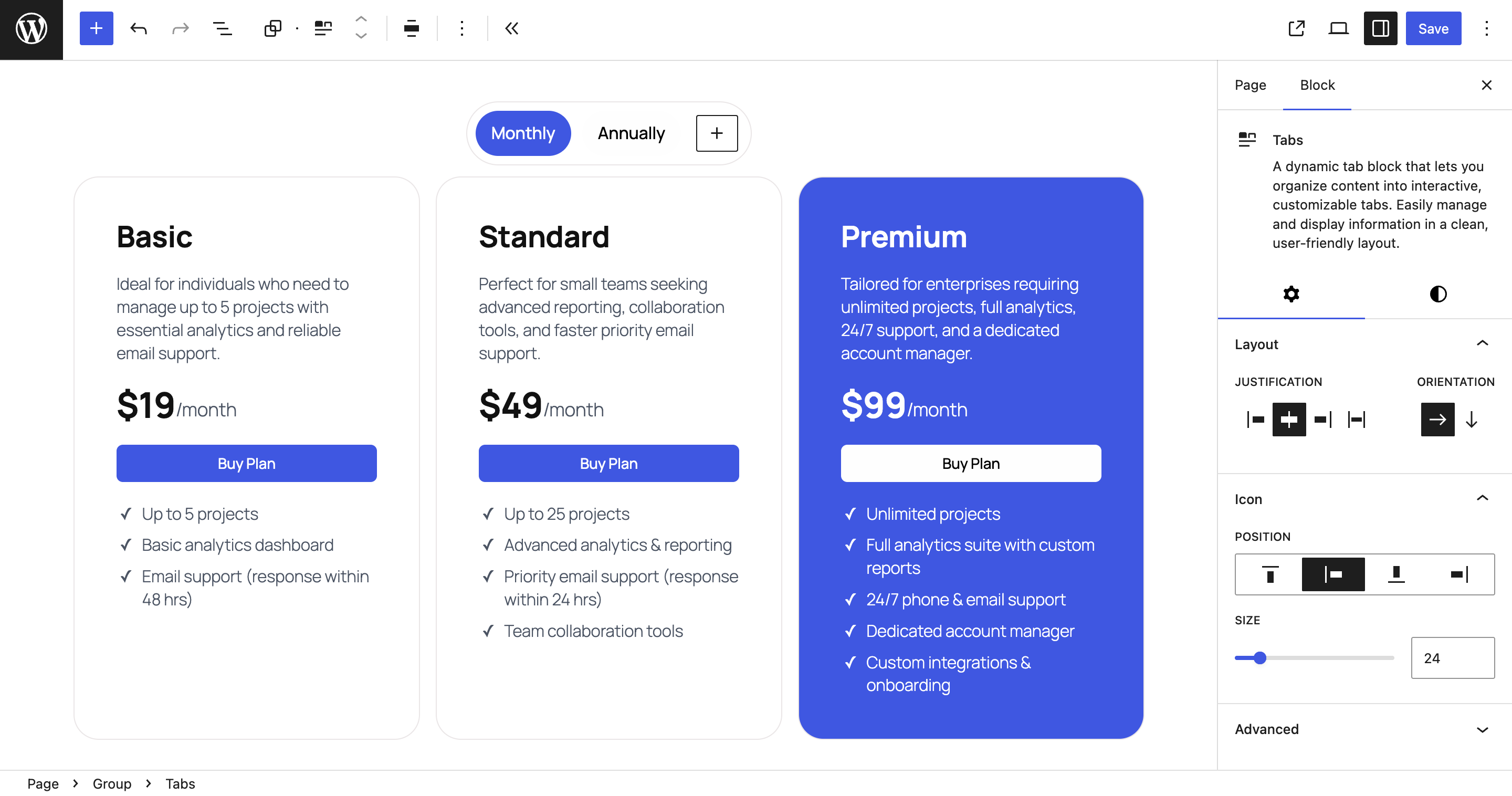
Build Accessible, Responsive Tabs in the Gutenberg Block Editor
Tabs Block for Gutenberg lets you add beautiful, responsive, and accessible tabbed content directly in the WordPress Block Editor no coding or external libraries required.
Whether you’re building a documentation page, a product features section, or a clean tabbed layout for content organization, this plugin helps you do it quickly and natively.
Why Choose BlaBlaBlocks Tabs Block?
The Tabs Block plugin combines modern WordPress standards with ease of use. Built using the WordPress Interactivity API, it ensures lightweight performance, accessibility, and full compatibility with the latest versions of WordPress.
Key Highlights
- Accessible Tabs: WCAG-compliant markup, ARIA roles, and keyboard navigation support.
- Zero Dependencies: No jQuery or heavy JS frameworks powered by the Interactivity API.
- Responsive by Default: Tabs automatically stack or scroll on smaller screens.
- Horizontal & Vertical Layouts: Switch between tab orientations with one click.
- Ready-to-Use Templates: Choose from prebuilt designs to jump-start your layout.
- Seamless Block Editor Integration: Looks, feels, and behaves like a native WordPress block.
Key Features
1. Fully Accessible
Accessibility isn’t optional — it’s built in. Tabs Block follows WCAG 2.1 guidelines and adds:
- ARIA attributes for screen readers.
- Tab focus management for keyboard users.
- Semantic markup that works with assistive technologies.
2. Responsive by Design
No need for custom CSS or media queries. Tabs automatically adapt their layout across screen sizes:
- On desktop: clean horizontal tab navigation.
- On mobile: collapsible stacked layout or swipe-enabled scrolling.
3. Horizontal & Vertical Tabs
Want sidebar-style navigation? Just toggle layout mode. You can switch between horizontal and vertical tabs at any time, perfect for documentation pages or feature lists.
4. Powered by the Interactivity API
Unlike most tab plugins that rely on JavaScript frameworks, BlaBlaBlocks Tabs Block uses WordPress’s native Interactivity API.
That means:
- Faster loading and rendering.
- Better Core Web Vitals scores.
- Seamless state management between editor and frontend.
5. Ready-to-Use Templates
Save time with built-in templates. Choose from multiple tab styles (minimal, boxed, underlined, colored) and insert them with one click.
6. Works Everywhere
Tabs Block is fully compatible with:
- Block Themes (Full Site Editing)
- Classic Themes using the Block Editor
- Reusable Blocks and Block Patterns
- Core blocks like Columns, Groups, and Cover
How to Use the Tabs Block
Step 1: Add the Tabs Block
- In the Block Editor, click the “+” icon to add a new block.
- Search for “Tabs Block”.
- Select it to insert into your post or page.
Step 2: Choose a Layout
Open the right-hand sidebar and pick from horizontal or vertical layouts. You can switch anytime.
Step 3: Add Tabs and Content
Add, rename, or delete tabs using the block toolbar. Each tab panel supports any block — text, images, videos, forms, etc.
Step 4: Customize the Look
Use the sidebar controls to adjust:
- Colors
- Typography
- Borders
- Padding and spacing
Step 5: Preview Responsiveness
Use the Editor’s device preview to test how your tabs behave on mobile, tablet, and desktop.
Checkout out documentation for more details
Customization Options
Tabs Block integrates seamlessly with WordPress’s design tools, so you can:
- Change background and text colors using global styles.
- Adjust spacing, borders, and radii.
- Apply block style variations for a unified site look.
For developers, advanced customization can be done via CSS custom properties or theme JSON overrides.
Common Use Cases
- Product Features Tabs: Highlight product details, specifications, and reviews.
- Documentation Pages: Organize setup instructions and API references.
- FAQs: Group related questions under topic-based tabs.
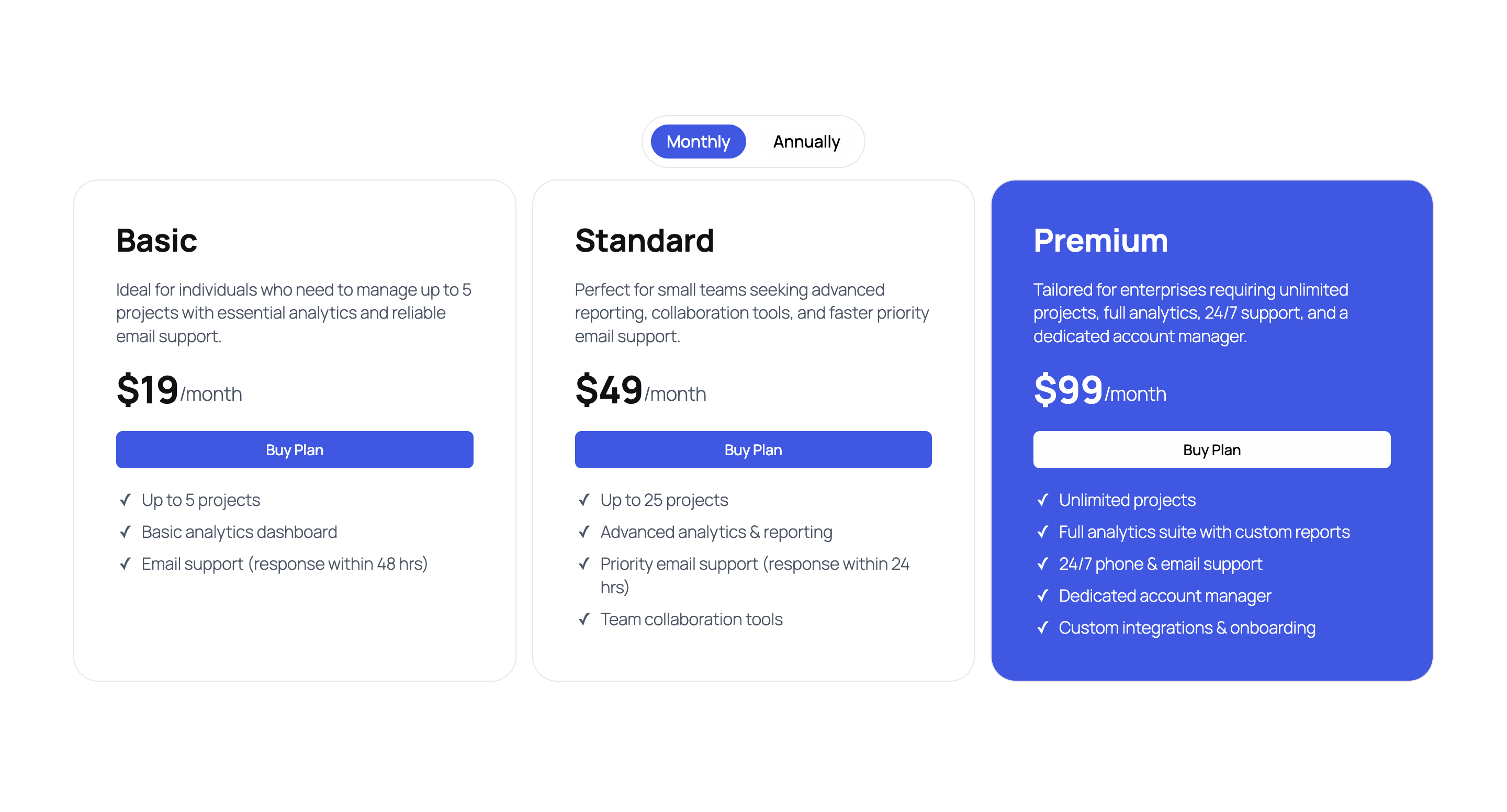
- Pricing Comparisons: Present plan details side by side.
- Portfolio Showcases: Display projects or case studies by category.
Integration and Compatibility
Tabs Block integrates smoothly with:
- Core WordPress Blocks: Columns, Groups, Cover, Image, Paragraph, Buttons, etc.
- Full Site Editing (FSE): Works in templates and template parts.
- Reusable Blocks: Create once, reuse anywhere.
- Translation Plugins: WPML, Polylang, Loco Translate.
- Caching & Optimization Plugins: No conflicts with WP Rocket, LiteSpeed Cache, or Autoptimize.
Troubleshooting
Tabs Not Switching?
- Check for JavaScript errors in your browser console.
- Ensure WordPress 6.5 or higher is installed (Interactivity API required).
Styles Not Applying?
Your theme’s CSS may override tab styles. Try adding a higher specificity rule or using the block’s built-in design controls.
Open Source and Free
BlaBlaBlocks Tabs Block is open source under the MIT License.
You can freely use, modify, and contribute to its development.
-
Source Code:
https://github.com/lubusIN/blablablocks-tabs-block -
Report Issues:
https://github.com/lubusIN/blablablocks-tabs-block/issues -
Documentation:
https://github.com/lubusIN/blablablocks-tabs-block/wiki